


Setting Up Your Email Account in Outlook:
The Classic Way
So you have received your email settings from us and are now asking yourself, "How do I set up my email?" This guide will walk you through the traditional method of configuring your email account in Microsoft Outlook. While modern methods often involve simplified setups, the manual process can be helpful for troubleshooting or specific configurations.
Accessing Mail via Control Panel
1. Go to your Control Panel. In the Search box type Mail and click on the Mail (Microsoft Outlook) result.

2. Click on Email Accounts.

Add or Change the Email Account
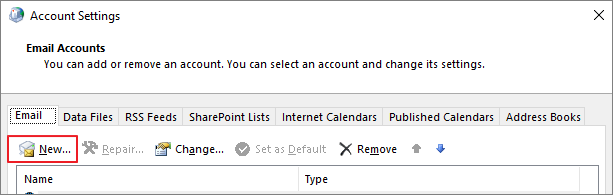
1. In the Email Accounts tab, click New. In this window, you can also choose your existing mail setup and click the Change button.
2. Select Manual setup or additional server types and click Next.

3. Choose POP or IMAP and click Next.

Account Information
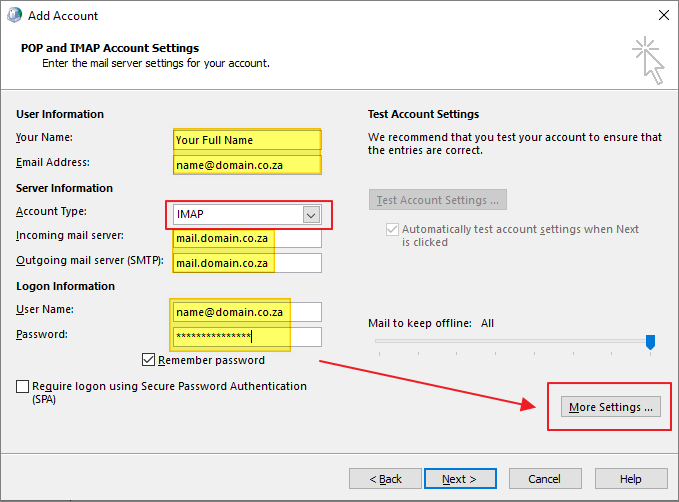
1. Enter all your Account Information.
User Information
Your Name: Your full name.
Email Address: Your full email address.
Server Information
Account Type: Choose POP3 or IMAP. To view the differences between these types, read our FAQ here.
POP3: Downloads emails to your computer and removes them from the server.
IMAP: Synchronizes emails across multiple devices.
For most users, IMAP is recommended but please note that email in IMAP will contribute to your overall hosting disk space.
Incoming mail server: Your incoming mail server address (usually mail.yourdomain.co.za).
Outgoing mail server (SMTP): Your outgoing mail server address (usually mail.yourdomain.co.za).
Logon Information
Username: Enter your email address.
Password: Enter your password.
2. Click on More Settings.
3. In the Outgoing Server tab, check My outgoing server (SMTP) requires authentication.
4. Ensure Use same settings as my incoming mail server is selected.

5. In the Advanced tab, change the settings as shown below and leave the other defaults as they are.
Secure SSL/TLS Settings (Recommended)
IMAP Port: 993
SMTP Port: 465
Change encrypted Connection for both to SSL/TLS.
6. Click OK.

Testing
1. Click on Next (for IMAP) or Test Account Settings (for POP).
2. Ensure all tests are successful and click Close.

3. Finish the prompts to complete the setup.
4. Open Outlook and your mail should appear.
View Video Instructions
Please note that the video depicts NON SSL settings. Please ensure you use SSL/TLS methods only.
Should you require additional IT support at a rate of R 500/hour, please contact us.