


A SharePoint Library is a shared space your whole team can access, unlike your own OneDrive for Business account. Once we set one up in Teams, here is how to sync it to your computer so everyone works from the same, latest files.
How A Library Gets Set Up
Shared folders are created and managed by your Microsoft Administrator to ensure security and correct access.
Steps:
- TSC Media (as your Microsoft Admin) sets up the Teams site and shared folders.
- Each Team is created with the correct members who need access.
For the difference between this and your own personal working space, see our Understanding SharePoint Libraries FAQ.
Syncing The Library
Once the Library is set up in Teams, you can sync it to your computer to work with it like any other folder.
Steps:
- Open the Document library via the link provided by TSC Media.
- If there is request access - please click request access and wait for approval. Once approved, move on to the next step.
- Look in the top navigation for the Sync button.
- If the button isn’t immediately visible, click the three dots (…) to reveal it.
- Click Sync.

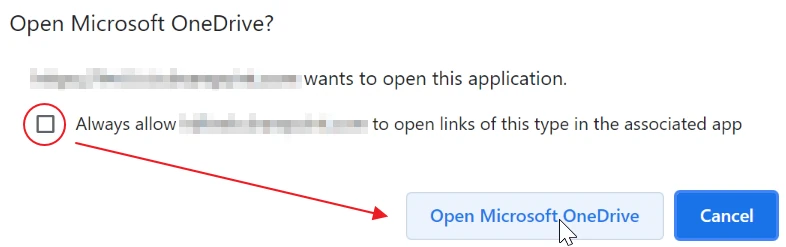
- If you get a pop up from your browser telling you that that the link will open the OneDrive programme, please check the ‘Always allow’ and select Open OneDrive.
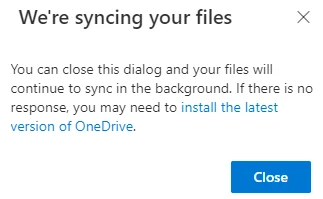
- You will get a notification that your files are being synced. Click Close.
Finding The Library After Syncing
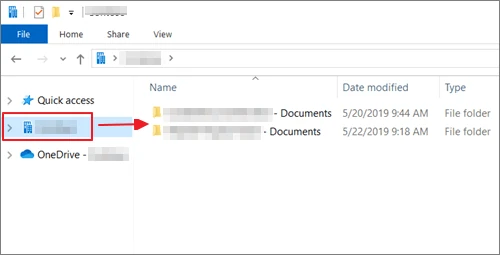
Once synced, the Library appears in File Explorer under your company name, making it easy to find and work with offline.
Steps:
- Open File Explorer.
- Look for a folder labelled with your company name.
- All synced Libraries will appear here.
Who Can Access the Folder
Only members of the Team have access to the synced Library, keeping company files secure.
- Make sure you are a member of the relevant Team.
- Anything placed in the Library is automatically accessible to all Team members.
Tips & Additional Information
- Changes made to files in the synced Library are updated for everyone in the Team automatically.
- If a member leaves the Team, their access to the Library is removed.
- Avoid moving or renaming the synced folder, as it may break the link to the Team Library.
- You can work offline. Changes sync back automatically when you reconnect.
Get It Set Up Properly
As your Microsoft Partner, TSC Media manages and administers all Teams Libraries. Our Microsoft Support service can get yours set up and syncing correctly.