


SharePoint Libraries are shared folders your whole team can access, unlike your own OneDrive for Business account, which is tied to you individually. This applies to Microsoft Business accounts (Microsoft 365), not personal Microsoft accounts. We explain the difference, and where each file should live.
OneDrive for Business vs SharePoint Library
Your OneDrive for Business is a company account, but it is tied to you individually. It is where you work day to day, and by default only you see what is in it. If you change laptops, lose access, or leave the company, your files remain on the company's system, but nobody else is working in that folder while you are there.
A SharePoint Library is a shared space set up for your team. Anyone with the right access can see it, work in it, and pick up where a colleague left off. It is not tied to any one person.
Which One to Use
If more than one person needs a file, or the company will still need it once you are gone, it belongs in a Library. If it is genuinely just your own working file, your OneDrive for Business account is fine.
Risks Of Getting It Wrong
- Files in your own OneDrive for Business account are not automatically visible to your team, even though it is a company account.
- Files in a Library are shared correctly and remain accessible even if a team member leaves.
- Saving to the wrong place creates duplicate files, version confusion, and lost work.
OneDrive vs Library Locations
Your OneDrive for Business and Library folders appear separately in File Explorer, each with its own icon and location.
Recognising The Icons

The cloud icon marks your OneDrive for Business account. The building icon marks your company's SharePoint Libraries, listed by company name.
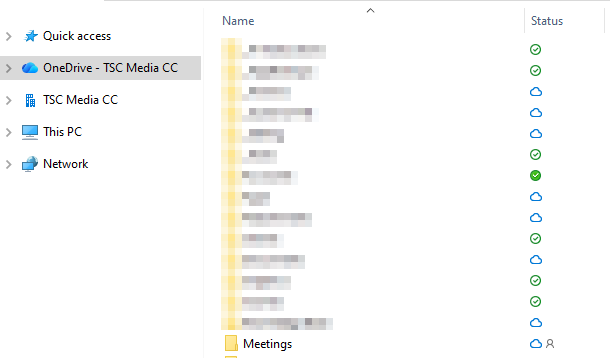
Your OneDrive Folder Contents
Everything listed under your OneDrive account is tied to you individually, this is your own working space.
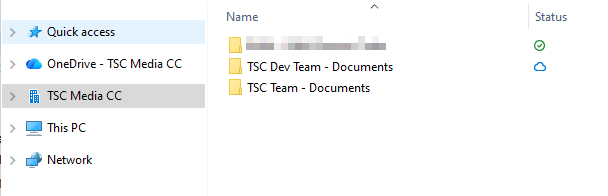
Company Library Folders
Libraries sit under your company name, not your own. Each one shown here (for example, a team's Documents library) is shared with everyone who has been given access.
Syncing A Library
For step by step syncing instructions, see our Syncing a SharePoint Library FAQ.
Need Help Deciding?
If you are not sure whether your team is using Libraries correctly, our Microsoft Support service can review your setup and get it right.